Measures Toolbar
The measure toolbar allows the end user to modify the default settings for the added measures.
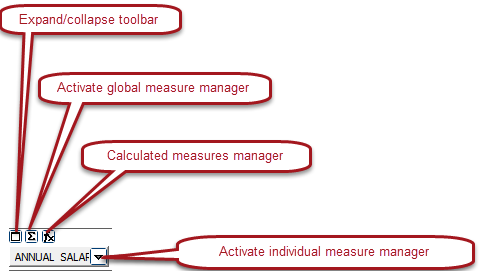
Expand/Collapse Toolbar
You can collapse the measure toolbar in order to have a bigger display area. The button acts as a toggle.
Activate Global Measure Manager
To activate the global measure manager click the global message manager icon shown in the above figure.

The measure manager is used to easily set the attributes of each measure item. Among the attributes you can set are the visibility of each measure, the displayed measure value and the filtered valued. On the example, to display the unit price measure, click on the red x to change to a green check mark.
When a measure item is not displayed on the measures toolbar, use the global measure manager to set its state to visible again.
You can also add a new calculated measure by using the calculator icon on the bottom toolbar. This will bring up the same form as the ‘Activate Calculated Measures Manager’ button.
Calculated Measures Manager
In this example a new measure was added to divide ANNUAL_SALARY by HOURLY_FTE to find the number of hours worked.

The calculated measures manager dialog box is used to add additional measures. The value of these calculated measures may use the values of the defined measures, much like how calculated fields are used in a database table.
Activate Individual Measure Manager
The individual measure manager is used to set the attributes of the selected measure. It is identical to the global measure manager, except that you can only set the attributes of the selected measure. To activate the individual Measure manager, click on the down arrow of the measure of interest.
